This description applies to two-factor authentication for M365 accounts. You can find our description of two-factor authentication for Neptun here.
You need to register two different authentications for the two systems.
Set up/manage two-factor authentication for M365 accounts
Set up/manage two-factor authentication for M365 accounts
It is possible to change forgotten passwords used by university services, if you have previously set up the function.
Preparations
1. Log in at portal.office.com
2. Click on the monogram or profile picture in the lower left corner, then select the “View account” option.
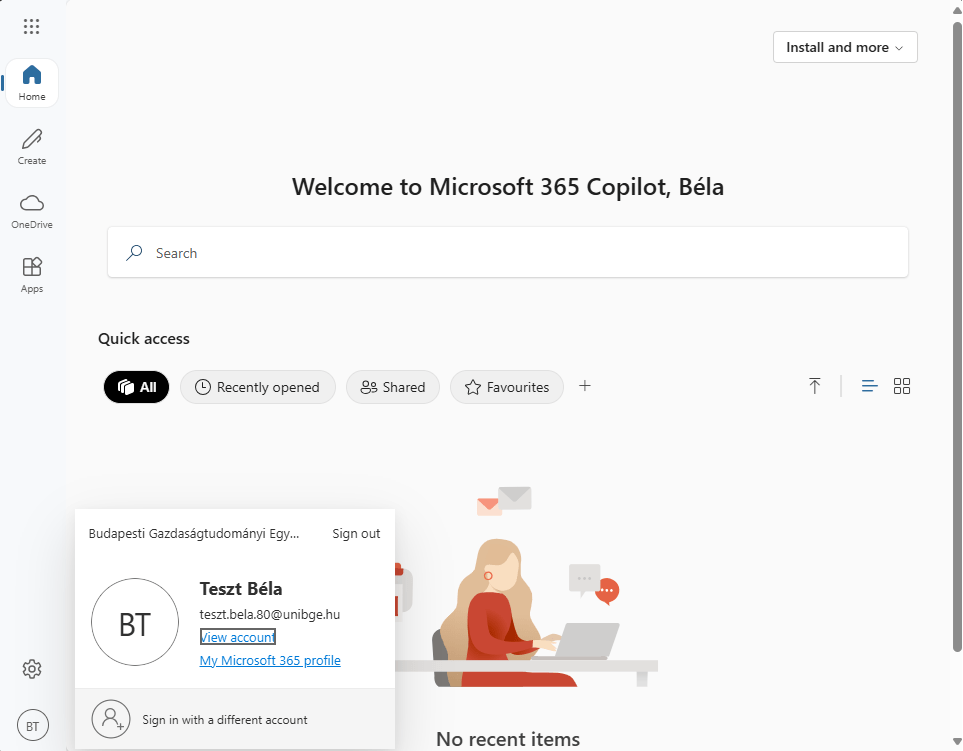
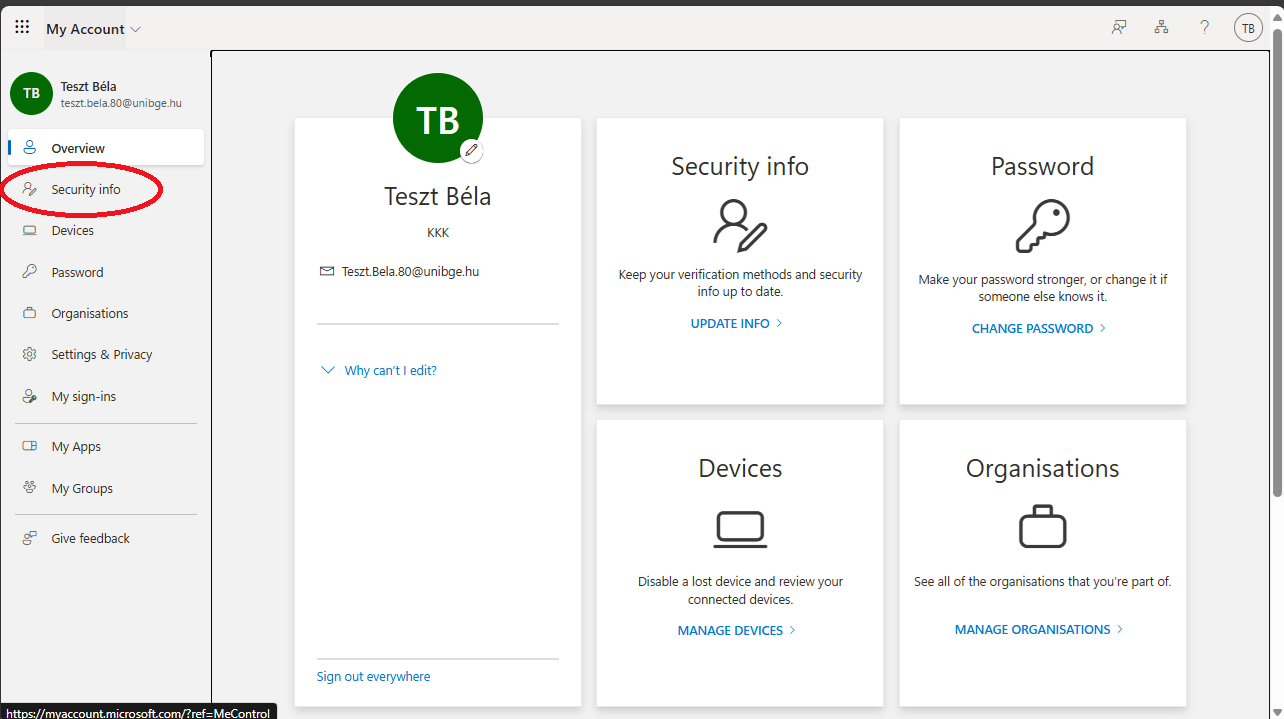
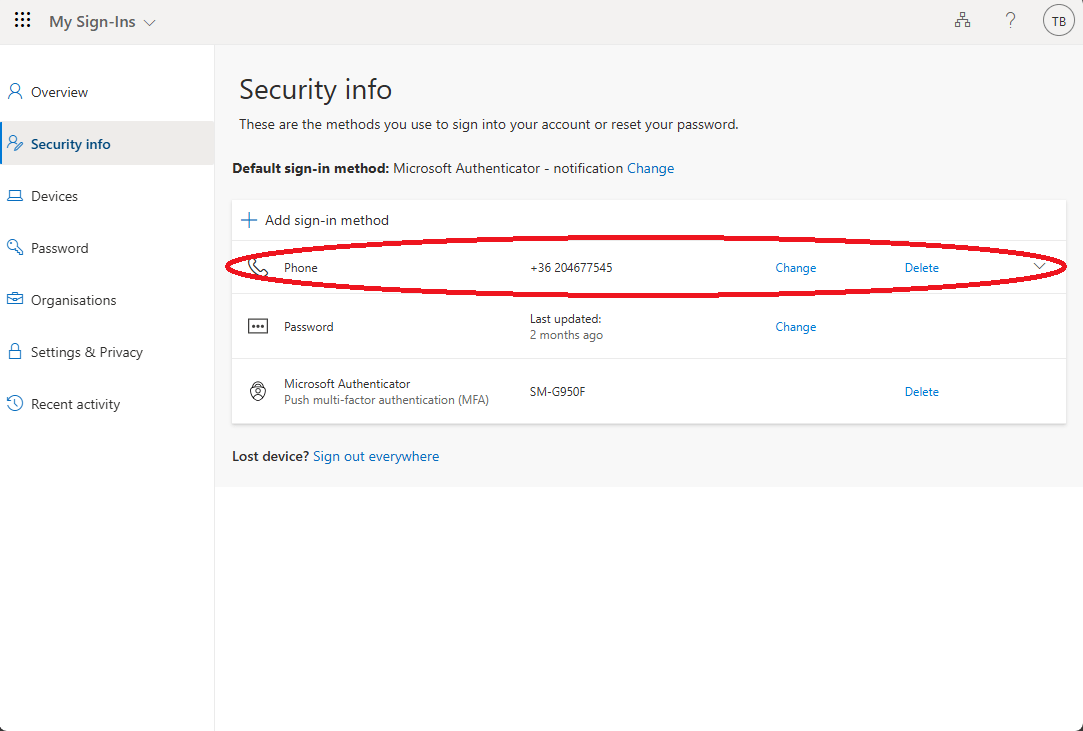
3. Navigate to the “Security info” tab, where the identification methods you have set up so far are displayed. You can change or delete existing login settings here or even add new ones.
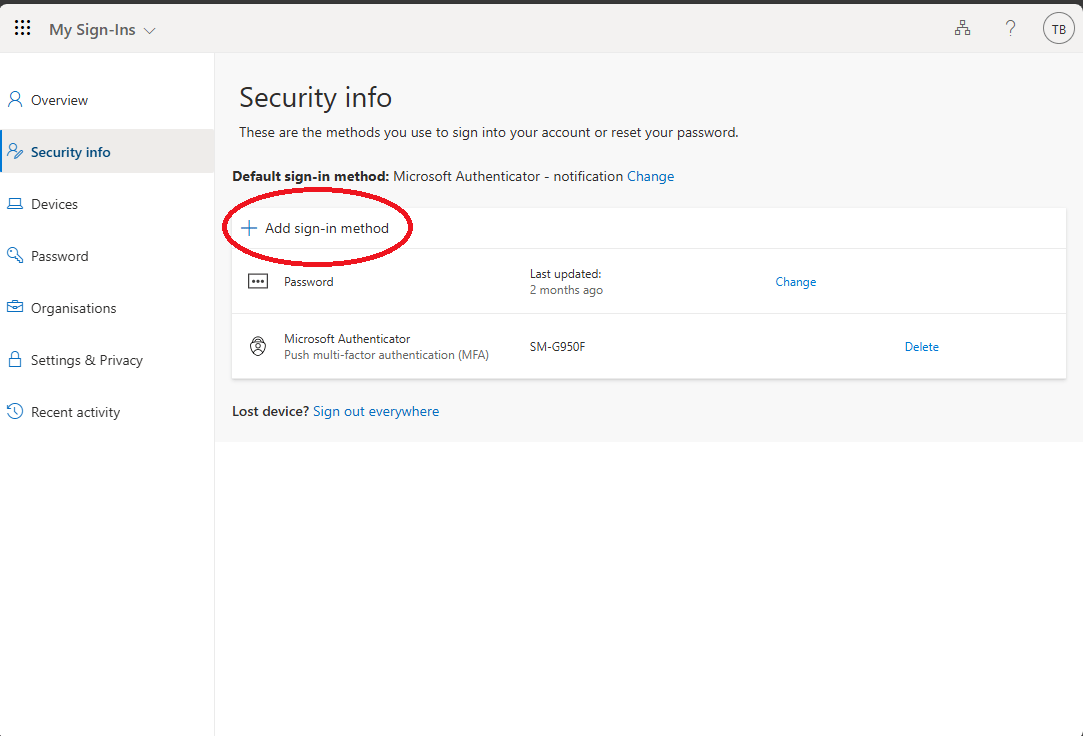
4. Click the “Add a sign-in method” button.
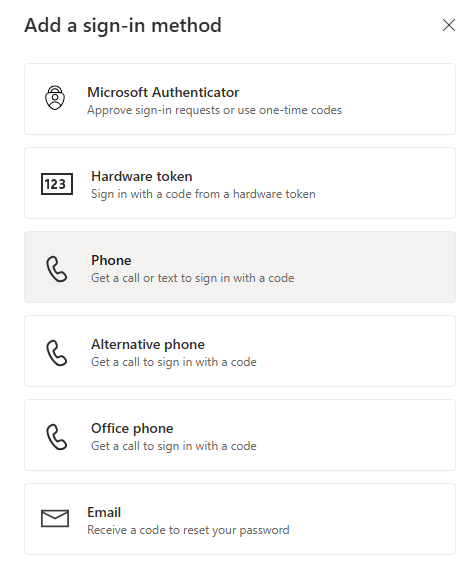
5. Select your preferred method:
- Microsoft Authenticator
- Phone
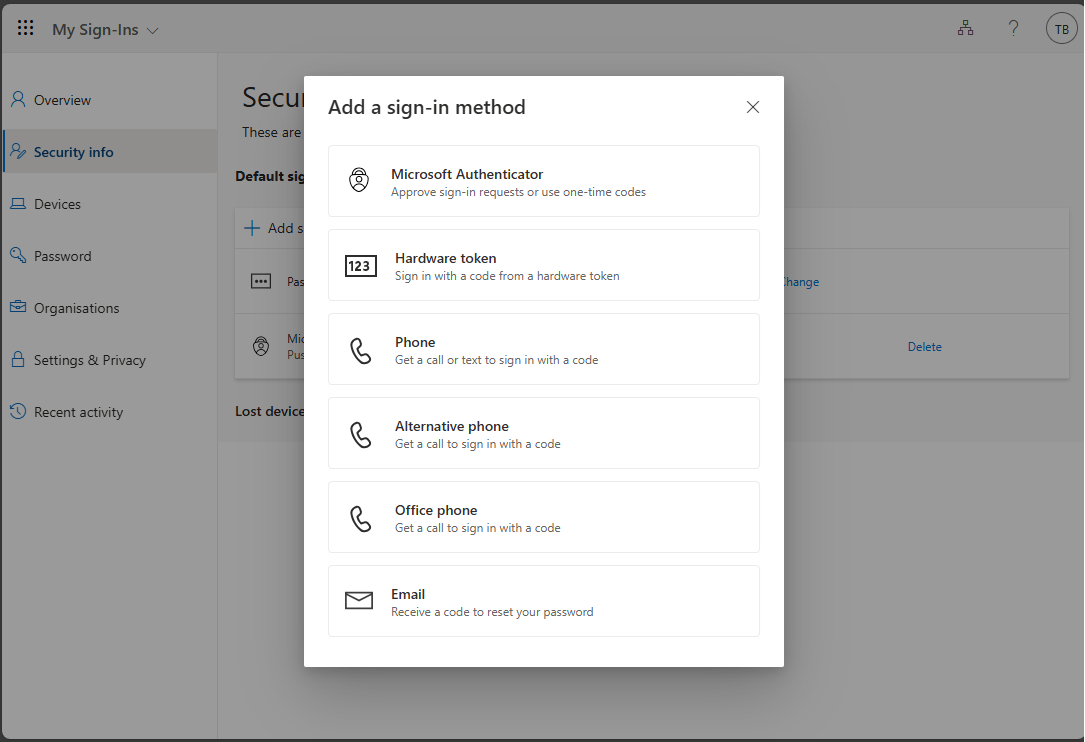
You will find several authentication options in the list. You will be prompted to do this if you have forgotten your password and want to request a new one. We recommend that you set up your phone or secondary email address, or both, for ease of use.
Setting up authentication methods
1. Select the "Phone” option.
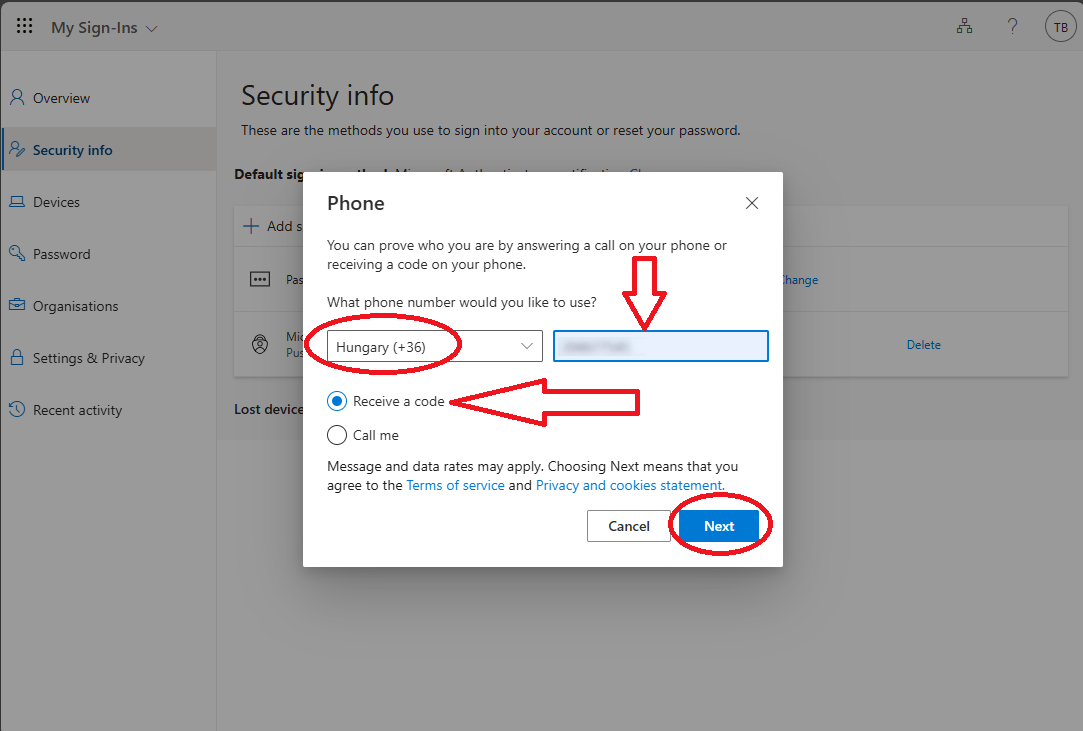
2. Enter your smartphone number, then select the “Receive a code” option. Click Next.
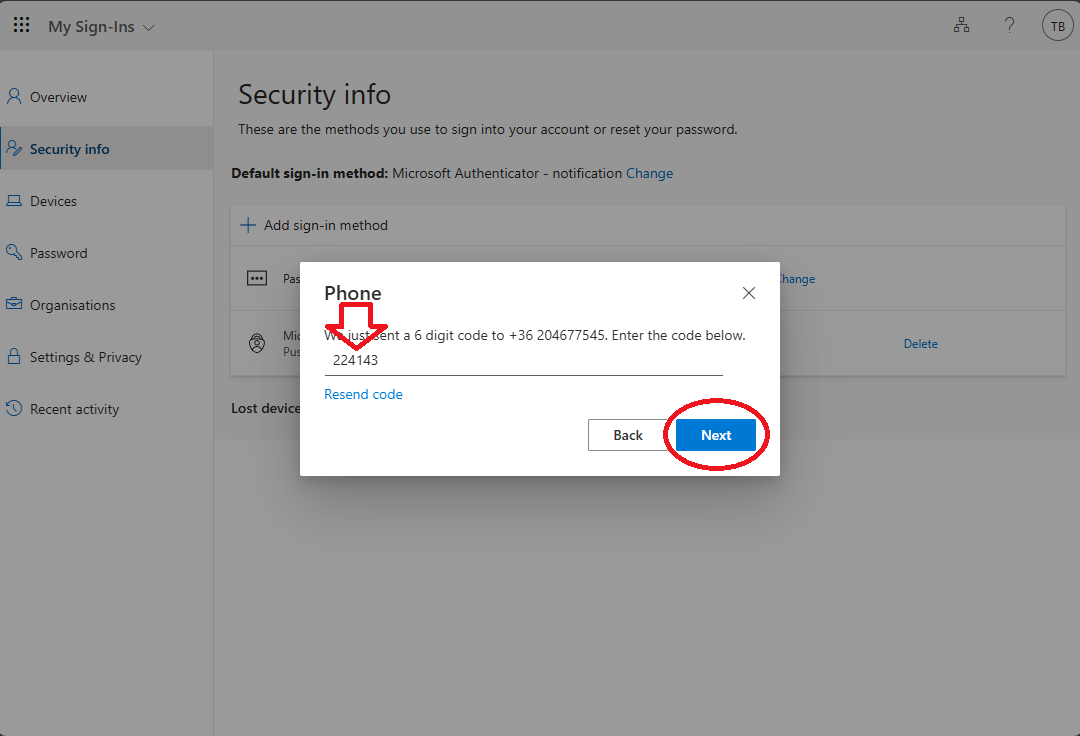
3. Enter the code sent via SMS. Press the Next button.
4. Your smartphone has been successfully registered. Press the "Done" button.
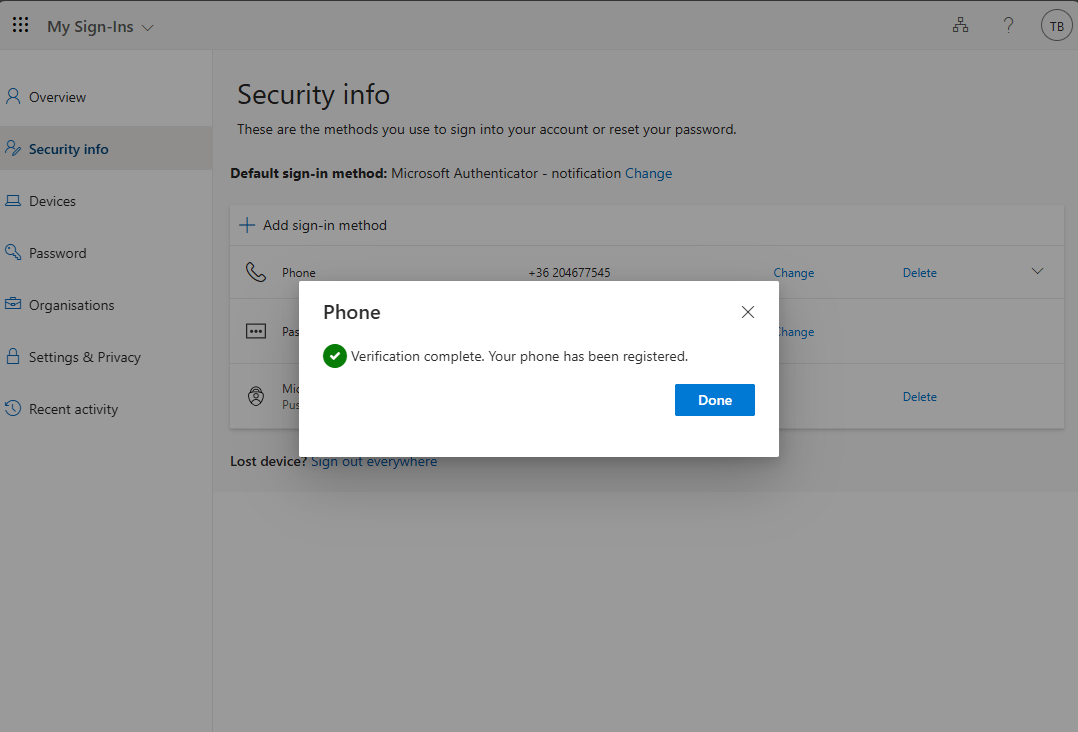
Your phone number has been set up in the "Security details" menu.
1. Select the "Microsoft Authenticator" method.
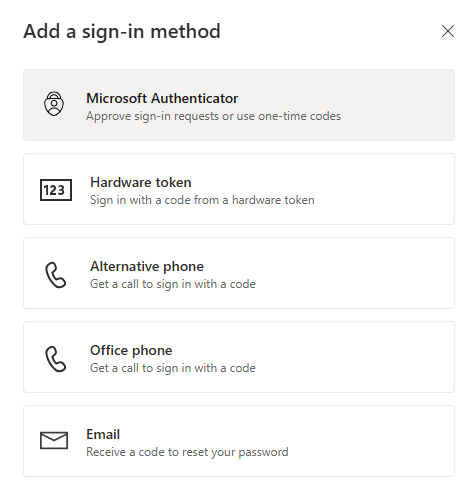
Note: You have the option to choose from several authenticator apps. Recommended: Microsoft Authenticator or Google Authenticator. Below you can read about setting up the former.
2. Download the app from the Google Play Store (Android) or the App Store (Apple) and install it.
3. Click the "Next" button.
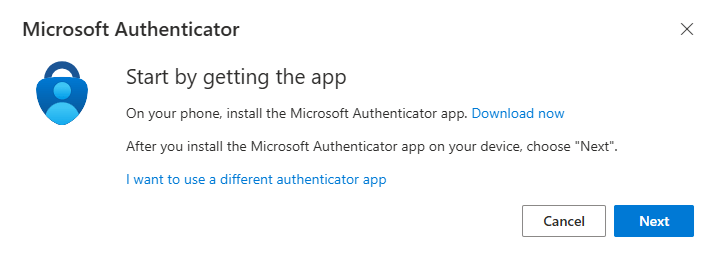
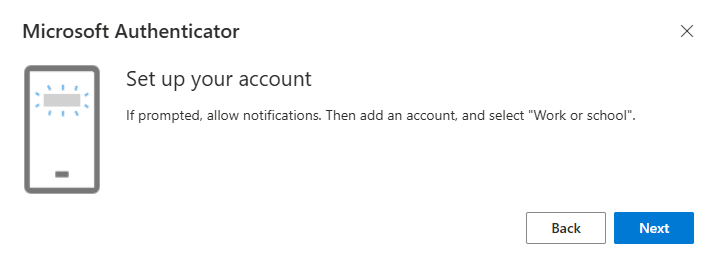
Microsoft Authenticator may ask for permission to send notifications.
4. In the Microsoft Authenticator app, tap the "+" button in the upper right corner, then tap "Work or school". Finally, tap the "Next" button on your computer screen.
5. Select the “QR code” option. Scan the QR code with your phone, and then click the "Next" button on your computer screen.
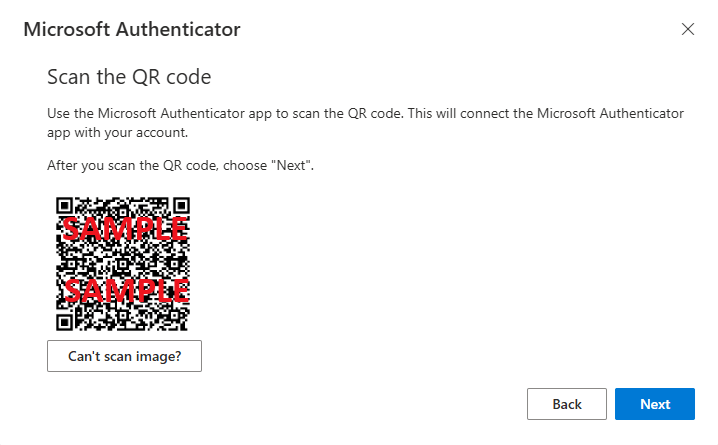
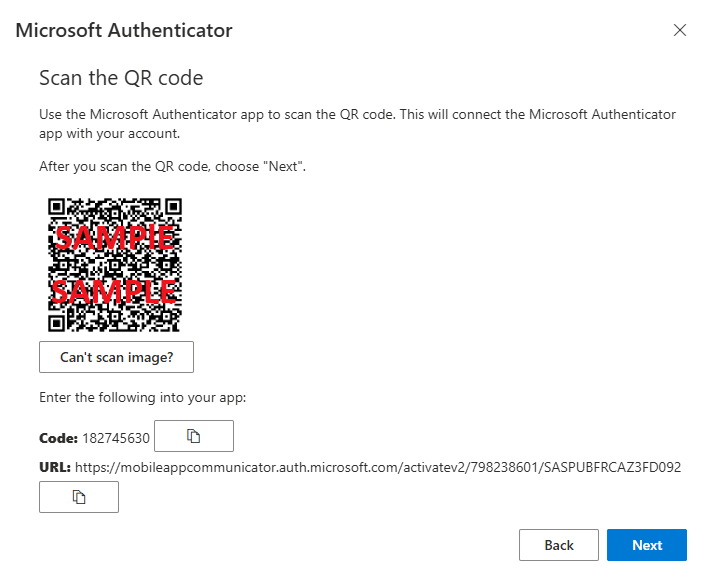
If the QR code scan fails, you can add the account manually. You can do this by following these steps:
- Click on the "Can't scan the image?" button to receive a code or URL.
- Select the "Or enter a code manually" option on your phone. A screen will pop up where you can enter the code or URL you have previously received.
Finally, tap the "Next" button.
6. Enter the number that appears on your computer screen on your phone.
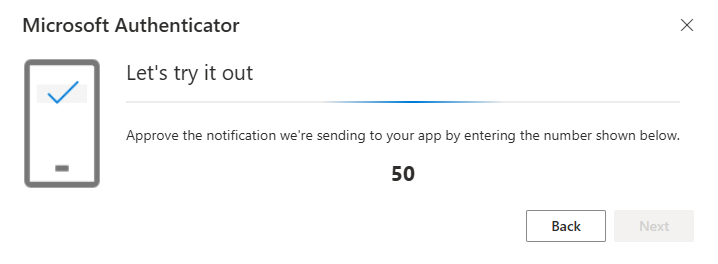
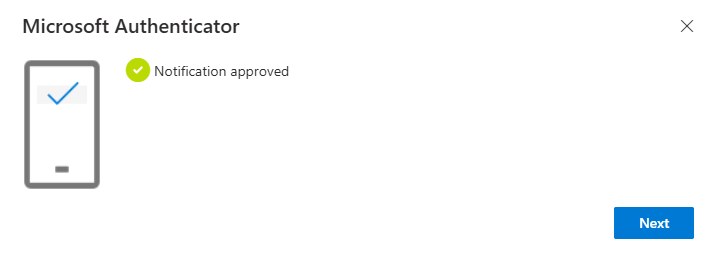
Once you are done with this step, your authentication process is going live.
From now on, you can only log in to your account with the authenticator app.
1. Select the “Email” option.
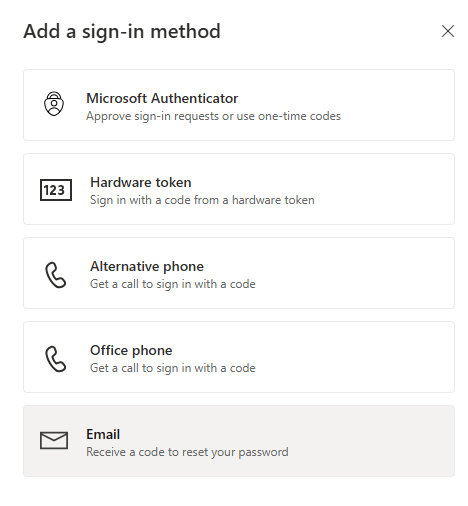
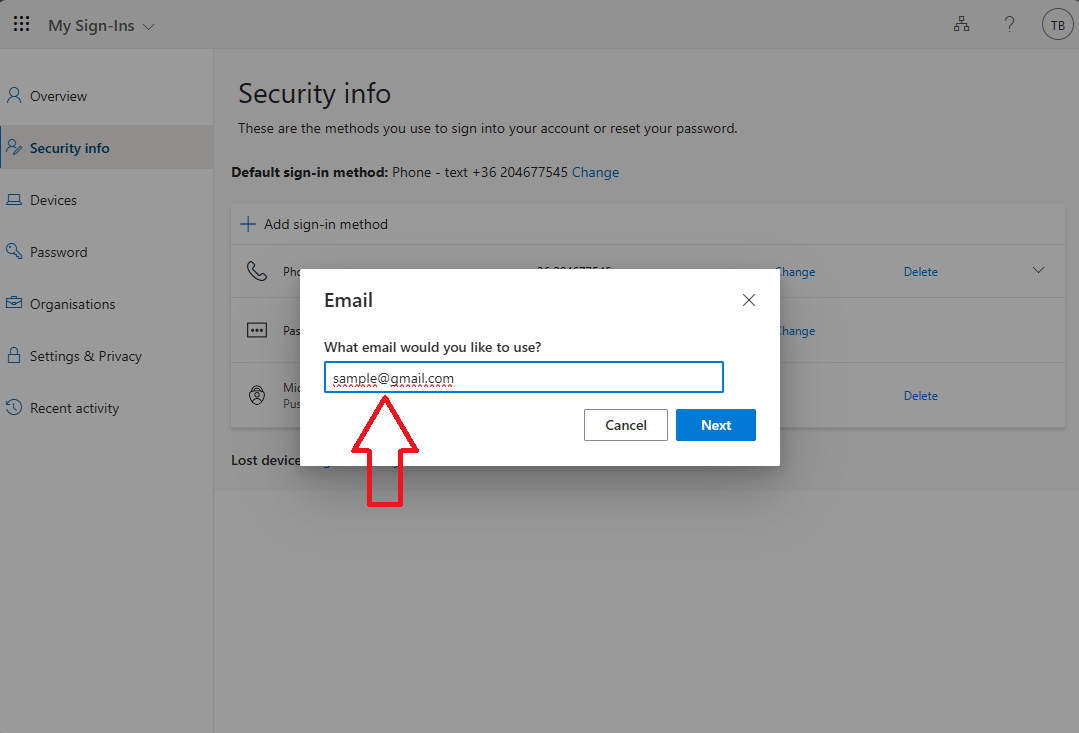
2. Enter an e-mail address that you can always access, even in the event of not being able to log in to your work account. Click “Next”.
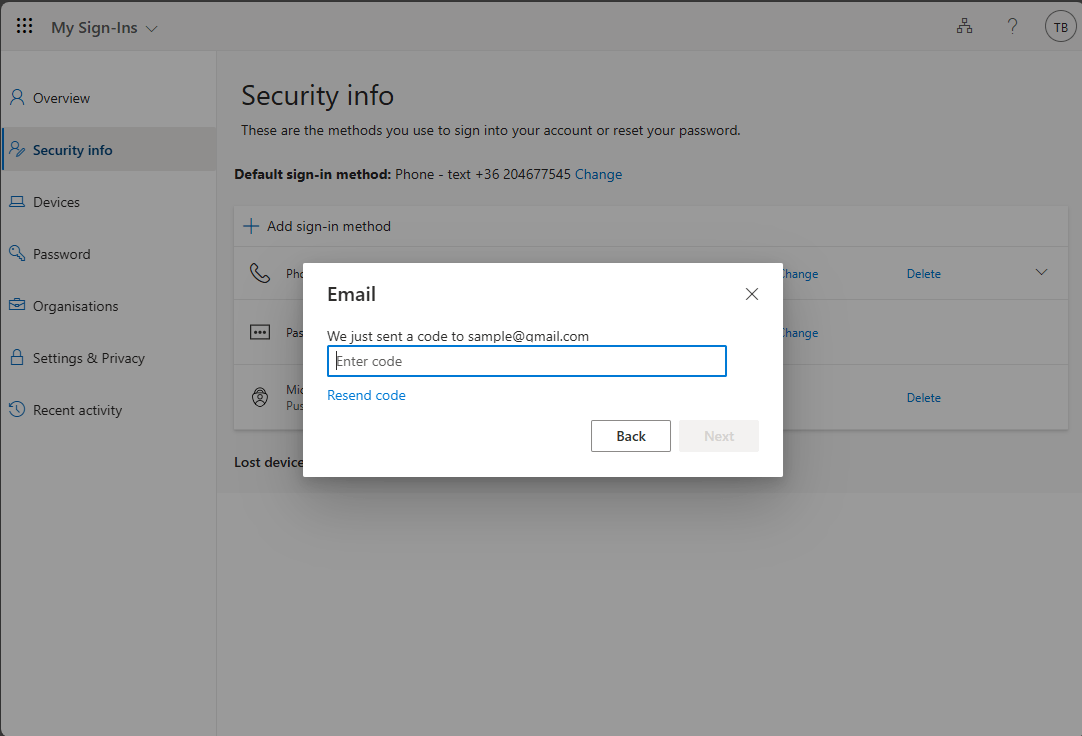
3. Enter the verification code received at the previously specified e-mail address.
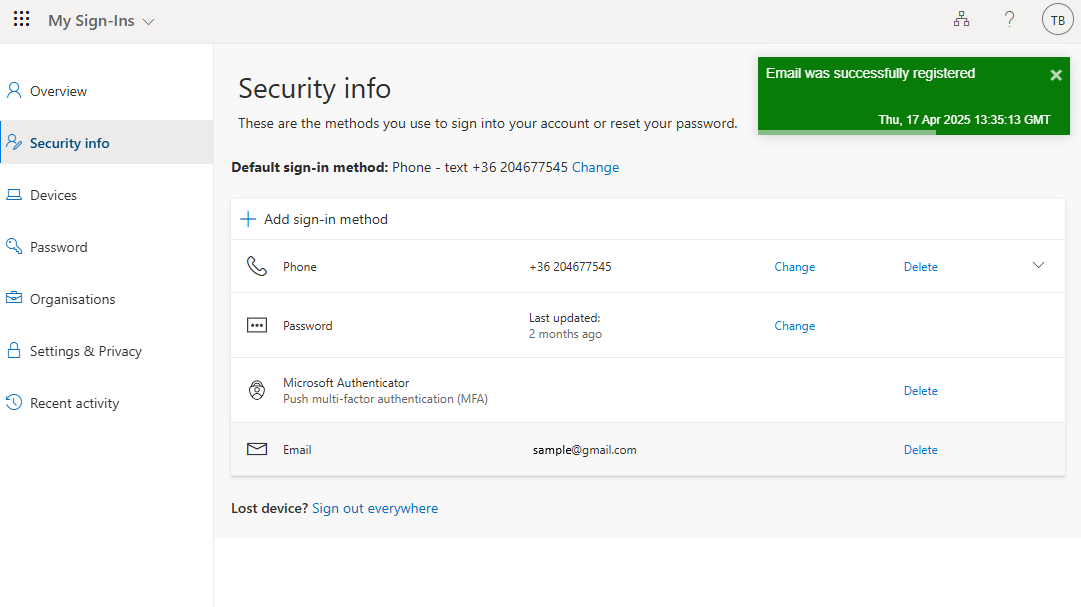
4. Press the Next button. You may check your newly set authentication option in the Security details tab.
How to reset a forgotten password
Recover your M365 account
1. Go to portal.office.com
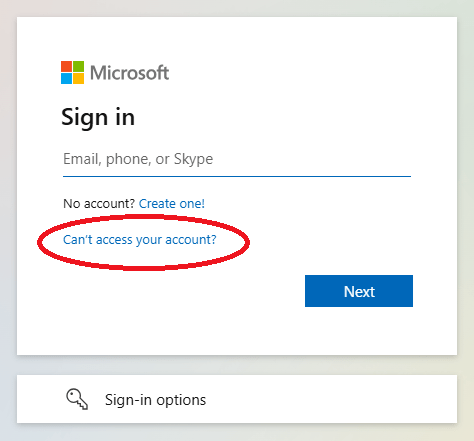
2. On the sign-in page, click “Can't sign in to your account?”.
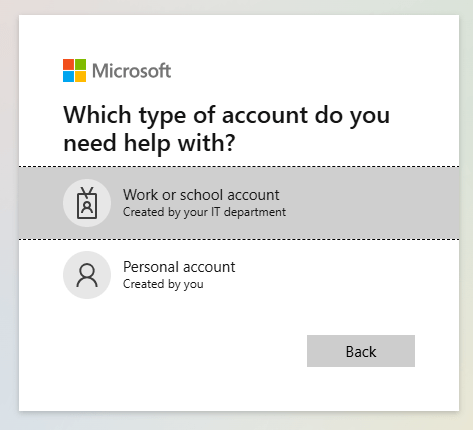
3. Select the “Work or school account” option.
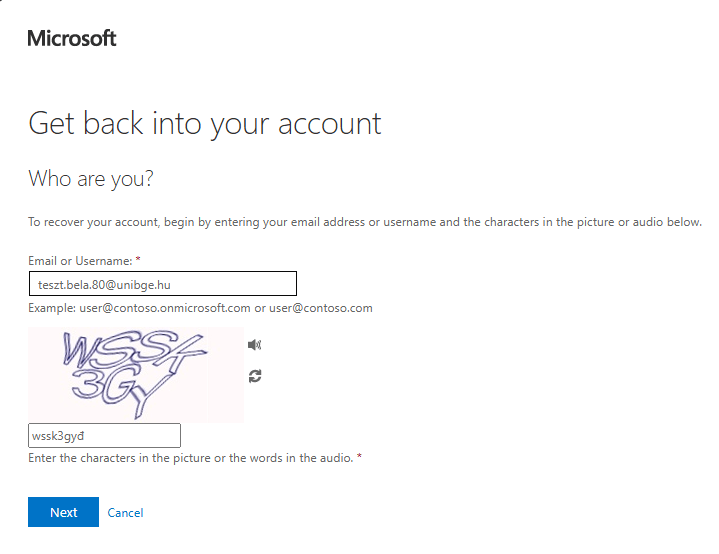
4. Enter your university e-mail address and the characters you see, then click “Next”.
5. Verify yourself using one of the previously set authentication methods (Authenticator, phone, or email).
1. Select "Send a text to my mobile phone" in the left menu, then enter your mobile phone number on the right.
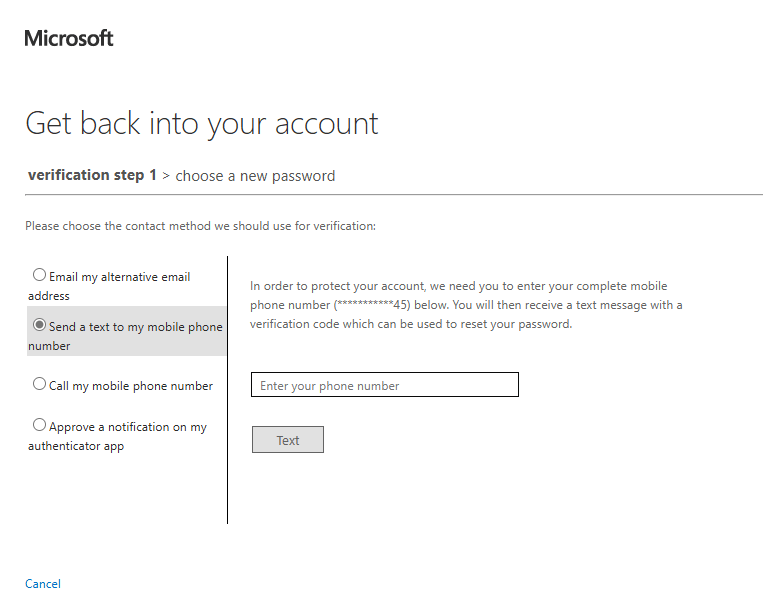
Press the "Text" button.
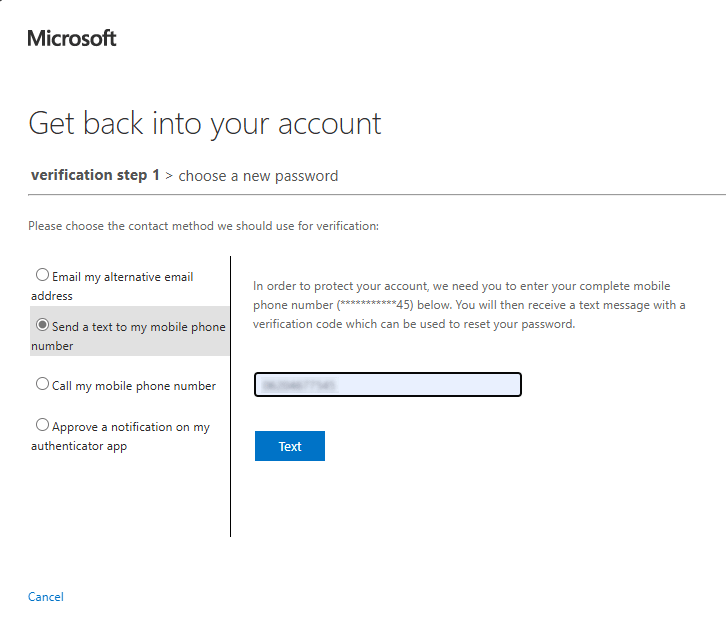
3. Enter the code received in the SMS, then press the "Continue" button.
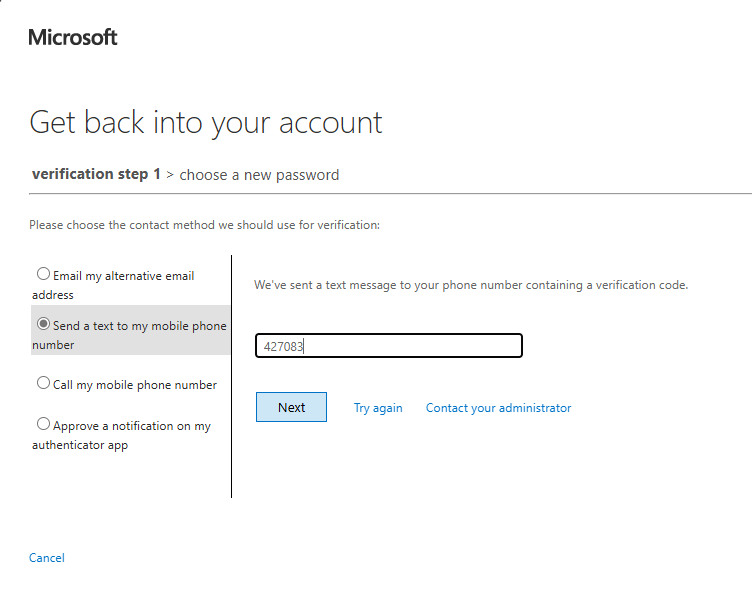
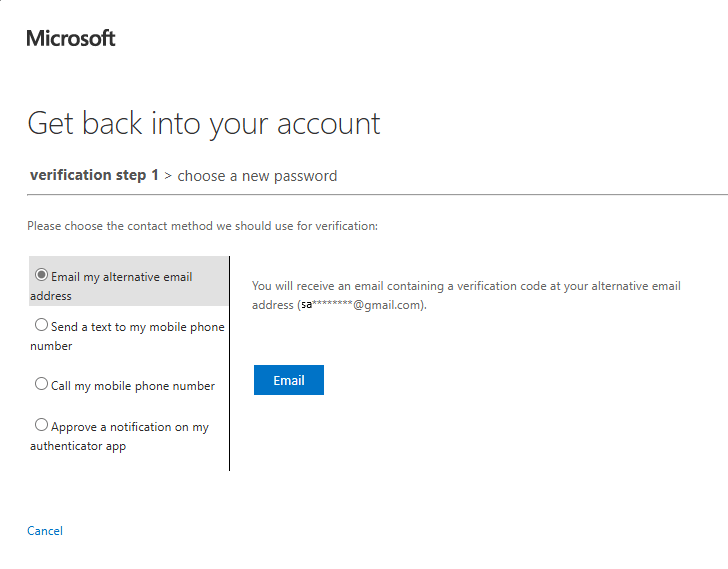
1. Selectnthe "Email my alternative email address" option on the left, then click on the "Email" button on the right.
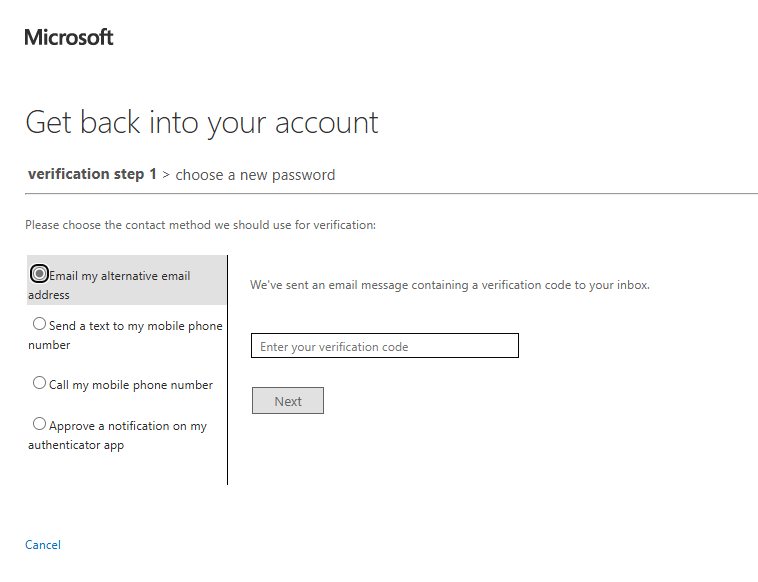
2. Check your secondary e-mail inbox and enter the verification code you have received.
Finally, click on the "Next" button.
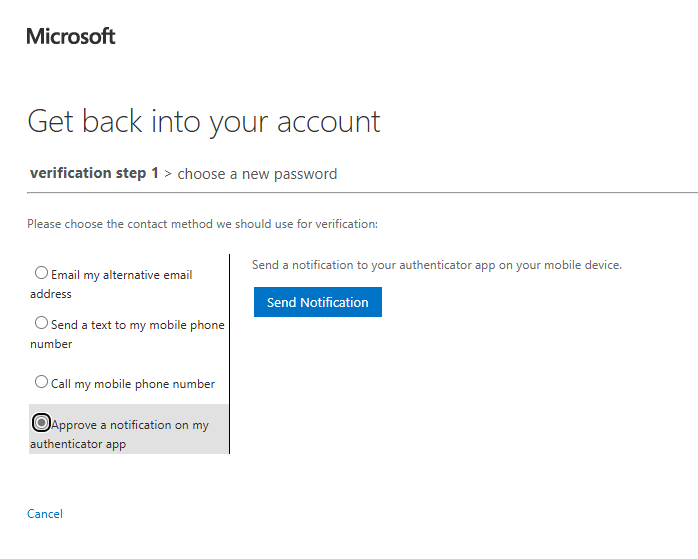
1. Select the "Approve a notification on my authenticator app" on the left, then click on the "Send notification" button on the right.
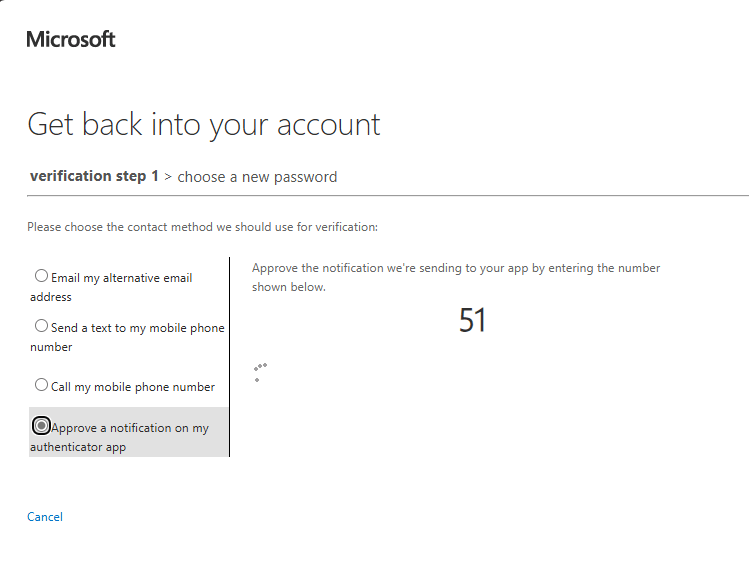
2. Enter the code you have received in the authenticator app on your smartphone.
Password reset
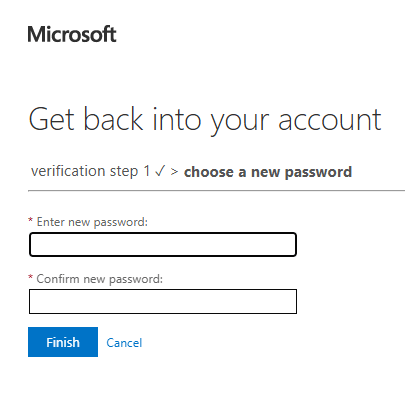
1. Enter your new password, then press the "Finish" button.
The structure of the password must meet the following conditions:
- It cannot contain the user account name or full name in a part longer than two consecutive characters.
- It must be at least 8 characters long.
- It must contain elements from at least three categories: English uppercase letters (A-Z) English lowercase letters (a-z) Numbers (0-9) Special characters (e.g. !, $, #, %).
After a successful password reset, you may reset again, but no sooner than 24 hours later.
What to do after changing your password
- It is important that you also update your stored password in order to access university systems (Eduroam wifi, neptun, VPN, Outlook, web systems, etc.), especially on smartphones.
- Using old, expired passwords may result in a temporary lockout from university systems!
- The system will provide feedback upon successful password reset.
If you encounter any problems, please contact the university IT support team.